PNG TO ICO / PRACTICAL GUIDE
Change PNG to ICO without losing the shape
Open the PNG in the converter, choose the icon sizes, convert, and download the .ico file. For a rectangular picture, choose transparent padding to preserve its proportions. Choose stretch only when you intentionally want it to fill a square. Renaming .png to .ico does not perform the conversion.
The complete change, from picture to download
- Choose the actual PNG. Open the converter using the button above, then select your image with Choose your images or drop the file onto the input area. Use a file you own or are allowed to use. Your image is processed in your browser.
- Choose the sizes you need. The converter offers 16, 24, 32, 48, 64, 96, 128 and 256 pixel squares. Its default selection is 16, 32 and 48. Leave those defaults for a first test, or use the sizes required by the program that will use your icon.
- Decide how a rectangle becomes a square. Keep transparent padding when the original proportions matter. Stretch changes those proportions. Neither option can recover details absent from a small source.
- Press Convert to ICO. Wait for the result card for your file. A preview before this step is not the finished download.
- Download the multi-size ICO. This puts the selected sizes inside one file for that image. Use the individual-size downloads only when you need one specific size. A ZIP is a container for downloads, not the icon itself.
- Open the saved file in the destination application. Keep your original PNG. Confirm the file you selected ends in .ico and comes from the result card, rather than selecting the source image again.
Try the shape decision with our own sample
The source below is a deliberately wide canvas containing a simple green parcel. It makes a wrong fit choice visible: the square remains square with padding, while stretch compresses it horizontally. These reference previews were generated locally with the accompanying Python script. They are not claimed to be fresh downloads from the web converter.
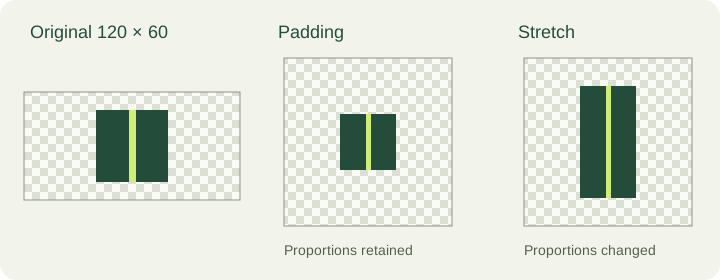
Download our source PNG · Padding reference · Stretch reference · Reference generation script



Our source is 120 × 60 pixels. For this reference we create a 48 × 48 output. Padding scales the source into a 48 × 24 rectangle and centers it, leaving 12 pixels of transparent space above and below. Stretch instead maps the source to the full 48 × 48 canvas. Those dimensions follow from this source and chosen output; they are not a universal margin preset.
To repeat the comparison in the actual tool, choose the same source and only the 48 size. Convert once with padding and once with stretch. Save the downloads with distinguishable names. Compare the shape, rather than judging only by which preview looks larger. The reference script documents the geometry; browser encoders and resampling can produce different file bytes.
Three downloads that are easy to confuse
| Choice | What to do with it |
|---|---|
| Multi-size ICO | Use this when the destination expects one icon file containing your selected sizes. |
| Single-size ICO | Use this when a particular size is required. It is still an ICO file, not a PNG preview. |
| ZIP | Extract it first, then choose the appropriate .ico inside. Do not give an application the ZIP as its icon. |
A multi-size file does not mean that every application will show every embedded size. The destination chooses how to use the file. This guide does not promise identical rendering in every Windows dialog, browser or image viewer.
If the first attempt does not look right
The icon looks squashed: check whether you used stretch on a rectangle. Return to the original PNG and select transparent padding. Avoid converting an already distorted result again.
The picture looks tiny inside the icon: inspect the source for empty margins. The converter preserves the canvas you provide. If you crop unwanted margins beforehand, keep a copy of the original and check that you are not removing intentional space.
The picture has a white block behind it: an opaque white area in the source is artwork. Converting to ICO does not automatically remove it. Preserving transparency and removing a background are separate operations.
The destination does not accept the file: confirm you downloaded an ICO rather than a ZIP or the original PNG. Check the destination's format and size requirements. A renamed PNG can keep its old encoded contents even when its filename ends in .ico.
Questions before you download
Can I change PNG to ICO by renaming it?
No. Changing the extension changes the filename, not the encoded image container. Use the conversion step and save the generated ICO.
Do I need a square PNG first?
No. You can provide a rectangle and use transparent padding to keep its proportions within square icon frames.
Do I need an account?
No. The ICOForge tool lets you select, convert and download locally without registration.
Which download should I try first?
Start with the multi-size ICO when your destination accepts an ICO file. If that destination specifies a size, select that size and use the matching output.
Can I do this on a phone?
The tool uses the browser's file picker and download support. Choose your PNG, convert, then save the result using the download controls your browser provides. The downloaded icon may not be previewable by every phone app.
Scope
This article explains a workflow and a reproducible shape reference. It does not claim an accuracy percentage, universal platform compatibility, a conversion speed, or a measured result from a new live-browser run. Your PNG stays in your browser during conversion. The reference files below were generated by ICOForge, not taken from another publisher.
Read our separate transparency experiment · Inspect an existing ICO